
Aranea Desktop
A cyberpunk desktop for Omarchy, with your projects within reach.
- Omarchy
- Hyprland
- Quickshell
- QML
- Bash
GitHub (opens in a new tab)README (opens in a new tab)Changelog (opens in a new tab)
On this pageA workspace that belongs together
A workspace that belongs together
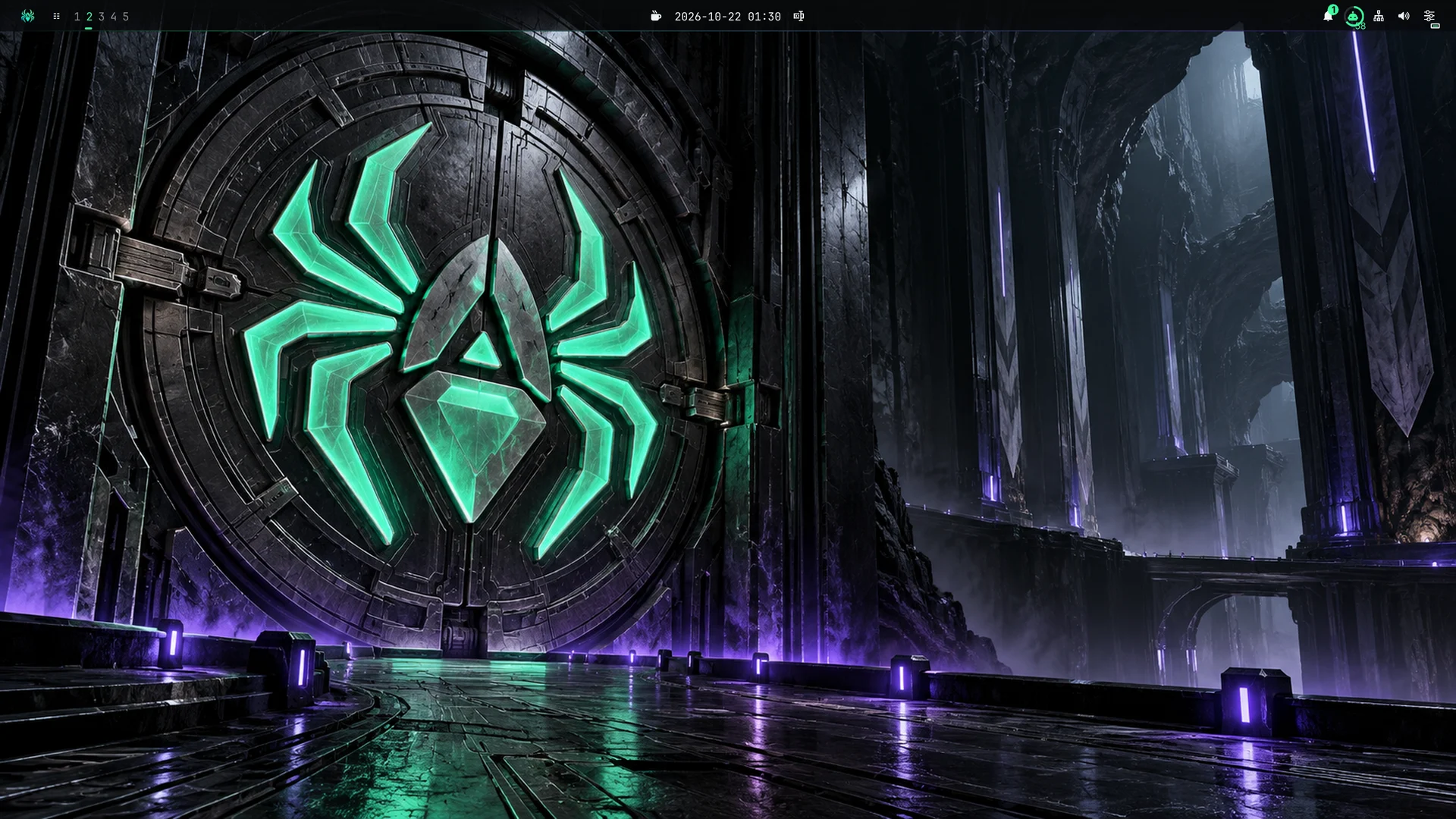
Aranea Desktop runs on an existing Omarchy installation. The command center, system panels, application styling, lock screen and optional boot splash share one visual language: obsidian, mint, violet and the Aranea spider.
The desktop brings everyday controls and development work into the same place. Open an app, return to a project, inspect a running action or change your audio device from the bar.
Start from the command center
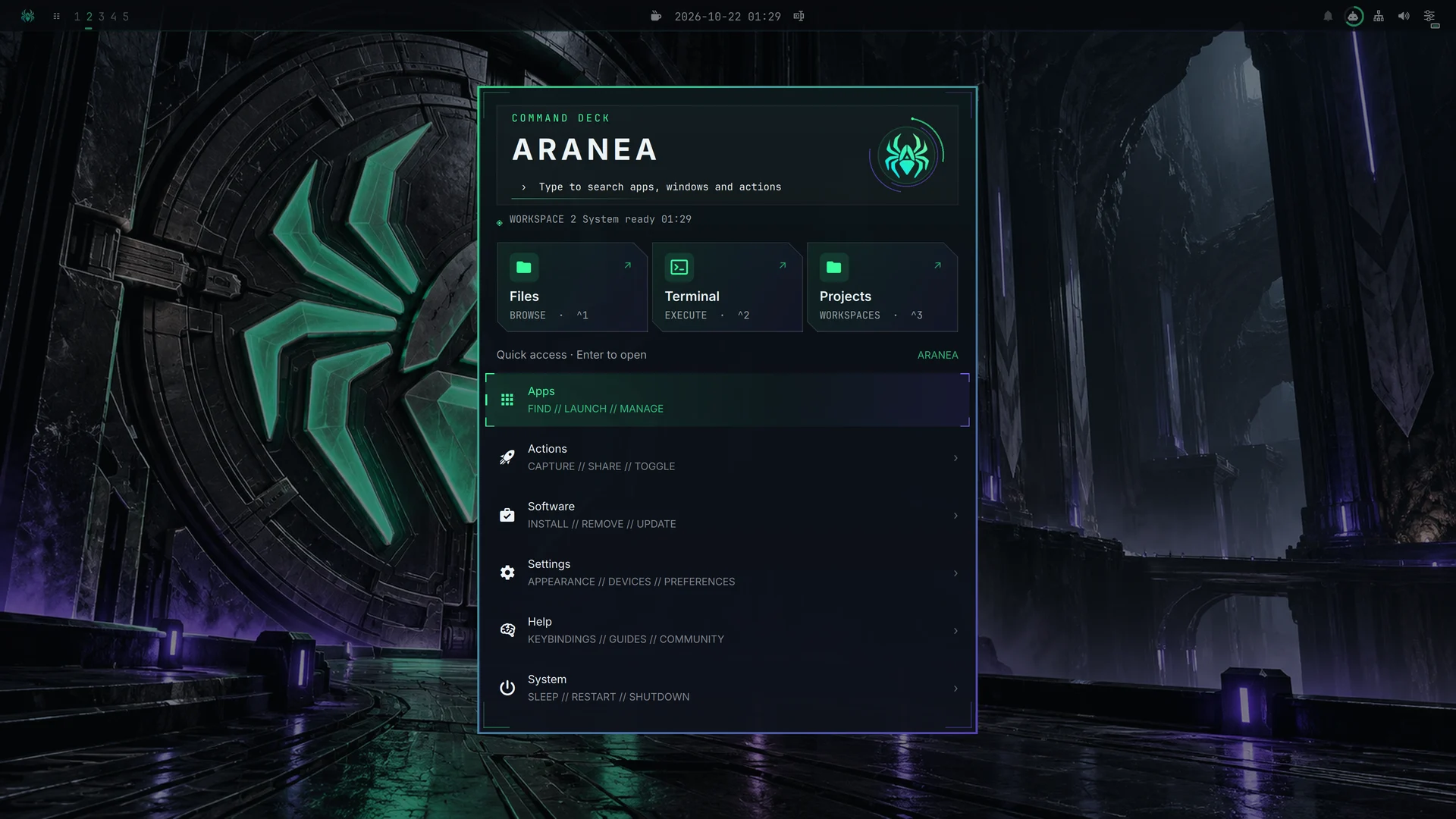
Click the spider on the bar to open the command center. Files, Terminal and Projects sit at the top; Apps, Actions, Software, Settings, Help and System follow below. Type to search, or narrow the results with prefixes such as app:, window: and project:.
Related controls share panels:
| Control | What it brings together |
|---|---|
| Clock | Calendar, World Clock, weather and home city |
| Network | Wi-Fi, wired connections, VPN profiles and Bluetooth |
| Audio | Outputs, microphones and per-application streams |
| System | Power, displays, resource usage and health diagnostics |
| Notifications | History and Do Not Disturb |
| Updates | Repository and AUR packages through Omarchy's native tools |
Pick up your project
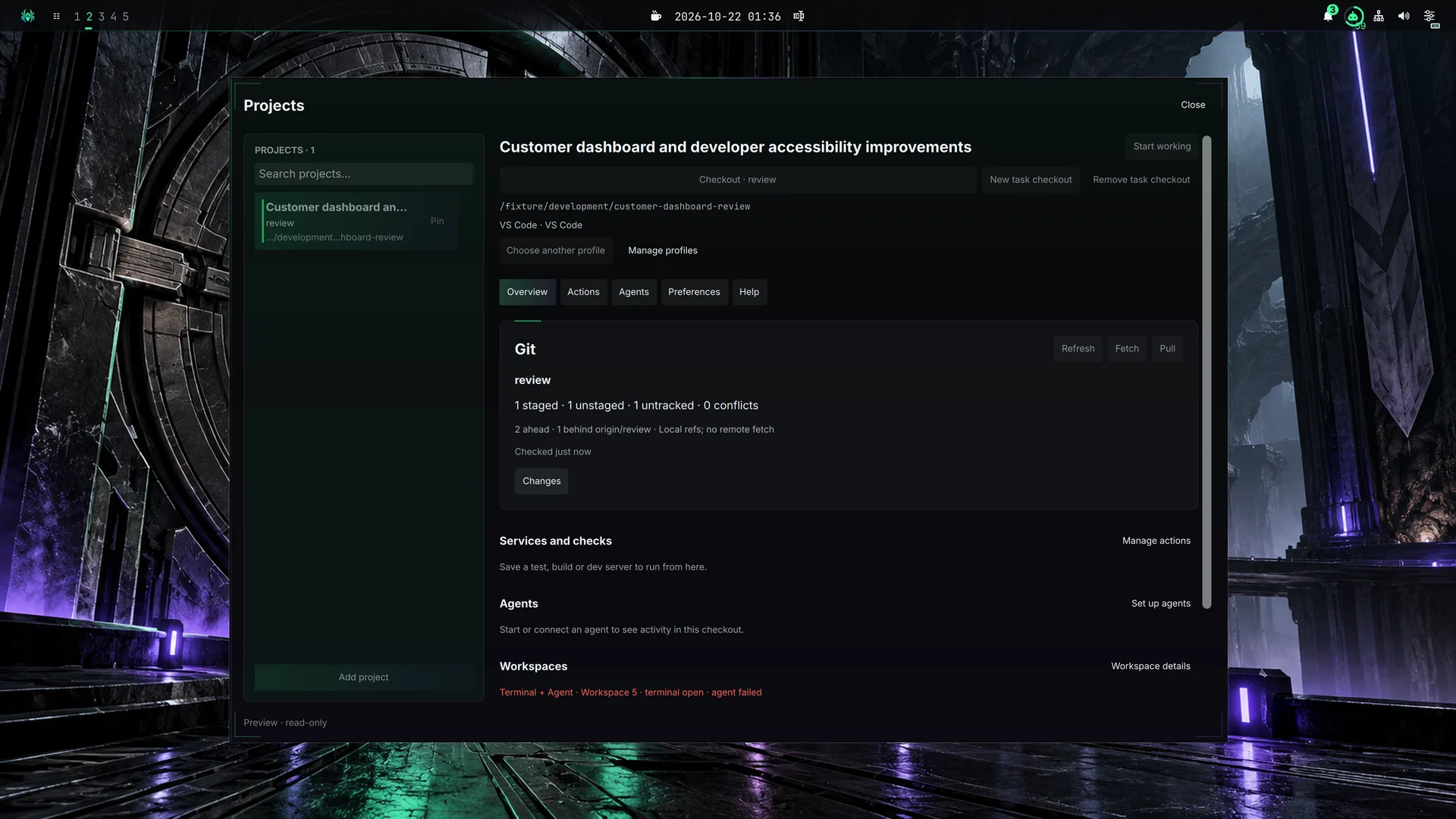
Register a folder under Projects → Add project, discover repositories and worktrees, and choose the tools you use. Return with Open or Resume, or find it with project: search. Task checkouts provide separate working copies.
Project actions are commands and services you explicitly start. Their status, local logs and Stop/Restart controls stay together. The Agents panels add provider usage and opt-in local Claude Code and Codex task activity.
Make the desktop yours
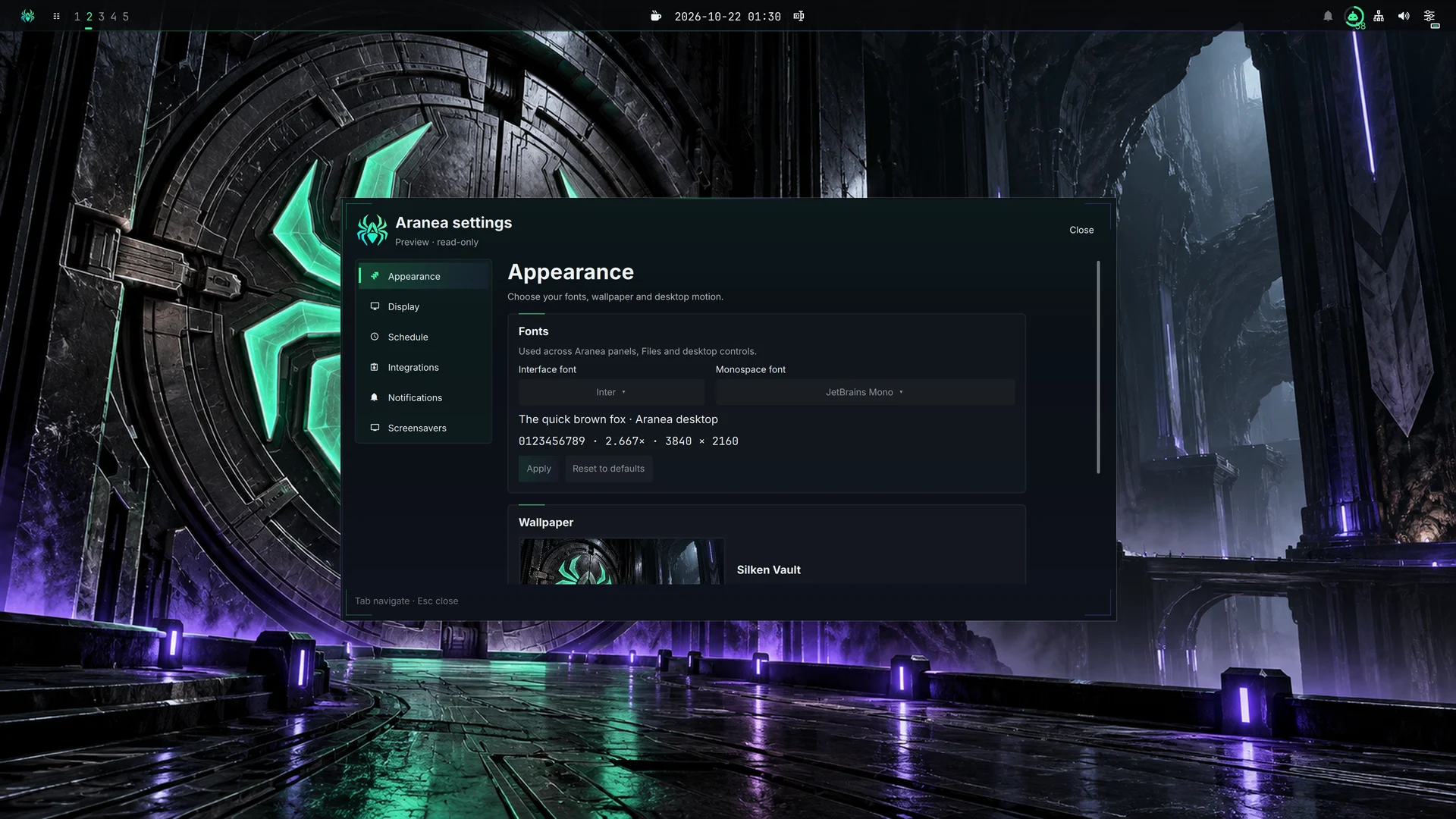
Open Command center → Settings → Aranea to choose wallpapers, fonts, motion, display scale, application integrations and notification preferences. Set a daily wallpaper schedule or keep one scene. Inter and JetBrains Mono are the default interface and technical fonts.
Supported application integrations follow the same palette. The installer applies integrations to applications already on your machine; it does not install your editor, browser, terminal or agent CLI.
Live scenes when you step away
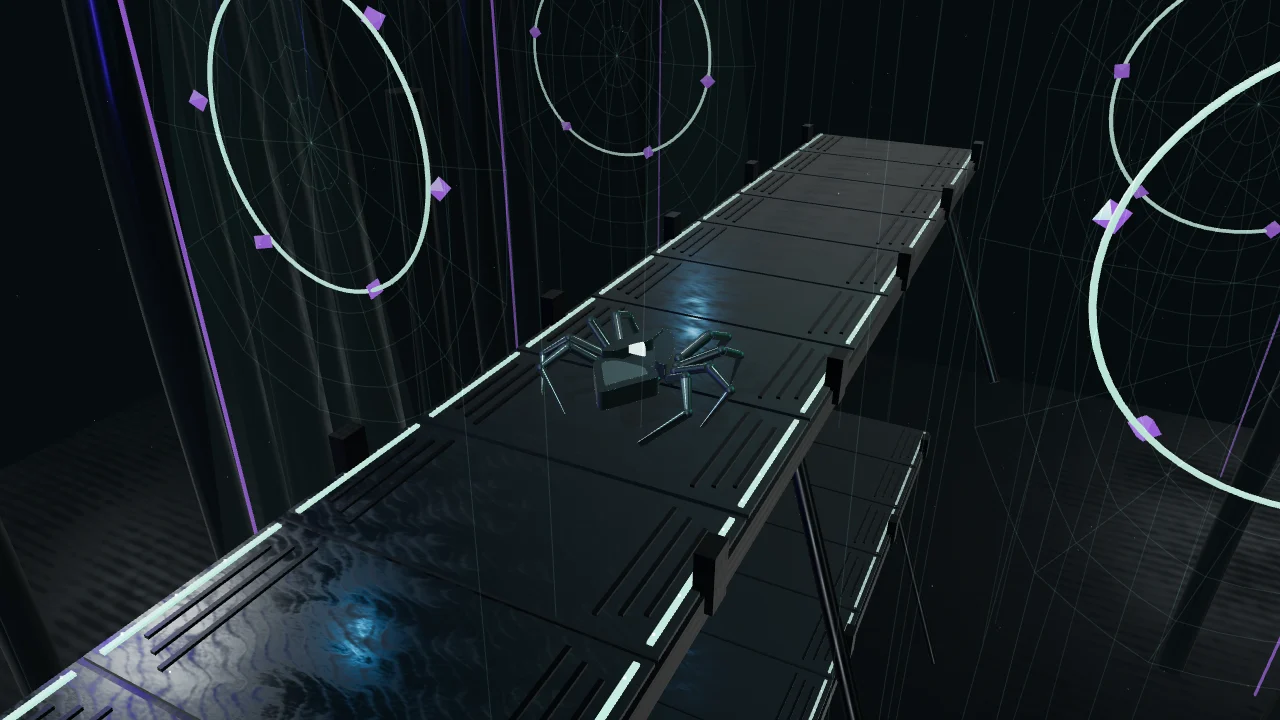
The screensaver collection includes the articulated spider's Silk Journey, luminous threads in Neon Weaver, and descents through Spiderfall. Other scenes explore particles, ribbons and geometric spaces in the same visual world.
Choose a scene or shuffle the collection under Settings → Aranea → Screensavers. Preview a scene before applying it. Screensaver and lock timing are configured separately. Live scenes use local assets and Chromium/WebGL; stock Omarchy remains the automatic fallback.
Install on Omarchy
You need an existing Omarchy installation with omarchy on your PATH, Git, and gum and jq for the guided installer.
git clone https://github.com/AraneaDev/aranea-desktop.git
cd aranea-desktop
./installer
Choose Install/update, select a profile and review the confirmation:
| Profile | What it installs |
|---|---|
full | The desktop and all supported application integrations |
minimal | The core desktop and GTK styling |
no_apps | The core desktop, GTK, cursor and icons, without extra application integrations |
To inspect the planned installation from the checkout:
scripts/install.sh --profile full --dry-run --yesInstallation activates Aranea. To return to it after selecting another theme:
omarchy theme set araneaRun the guided installer again to update. Diagnosis, repair and removal are also available there. The getting started guide covers activation, the optional boot splash, local development sources and removal. Browse the full gallery for more panels, wallpapers and live scenes.